Bubble
Bubble setup guide
Human Reply puts a live chat on your Bubble app and brings every conversation to your team's Telegram group. Our plugin adds it to every page of your app, with one key from setup. This guide covers setting it up, adding the plugin, using it and removing it.
1Before you start
- Telegram. A Telegram account, and a group for your team with Topics turned on. You can make the group during setup.
- A Bubble web app. Any plan. Bubble's free plan can't deploy to live, so there the chat runs in your app's test version.
- A payment card, for the seven-day free trial. Nothing is charged during the trial.
- About ten minutes.
2Start setup
- Go to humanreply.app/start and choose Bubble.
- Type your app's address: its bubbleapps.io address, like yourapp.bubbleapps.io, or your own domain.
- Press Start setup. Setup opens in your browser, and everything in it is saved as you go.
3Set up, in five steps
- Create your bot. Open BotFather in Telegram from the setup page (the first message is typed for you), choose a name, and paste the token BotFather gives you.
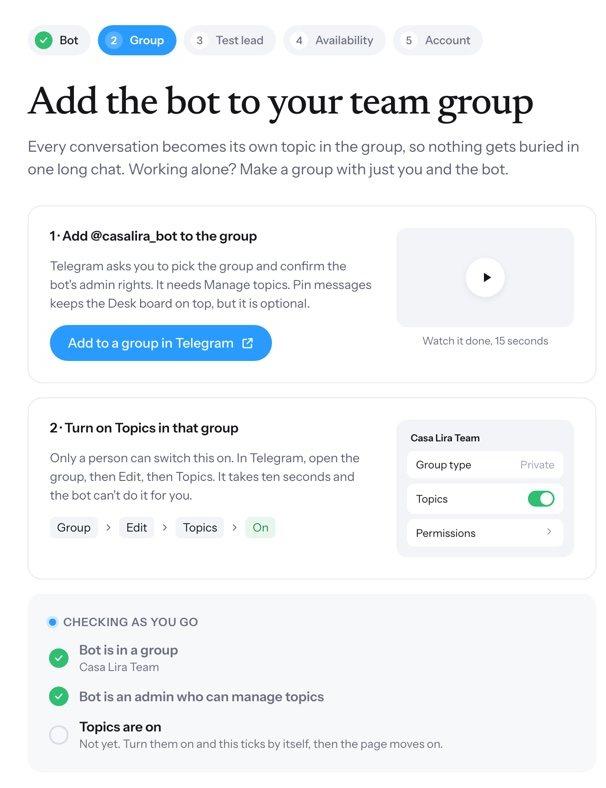
- Add it to your group. Add the bot to your team's group as an admin, and turn on Topics. The page checks as you go.
- Send a test lead. Write a message on the setup page and answer it from your phone, to see the whole loop once.
- Set your hours. Business hours, auto-away, and the ways a visitor can ask for a reply when nobody is free.
- Make your account. Your email and the six-digit code we send to it, then the plan: seven days free, then $12 a month, or $120 a year. You add your card on Stripe; nothing is charged during the trial, and the plan starts by itself when the trial ends unless you cancel before then.
4Add the plugin to your app
The last setup page shows your site key, like rl_xxxxxxxx, with a copy button. It is the one thing the plugin needs.
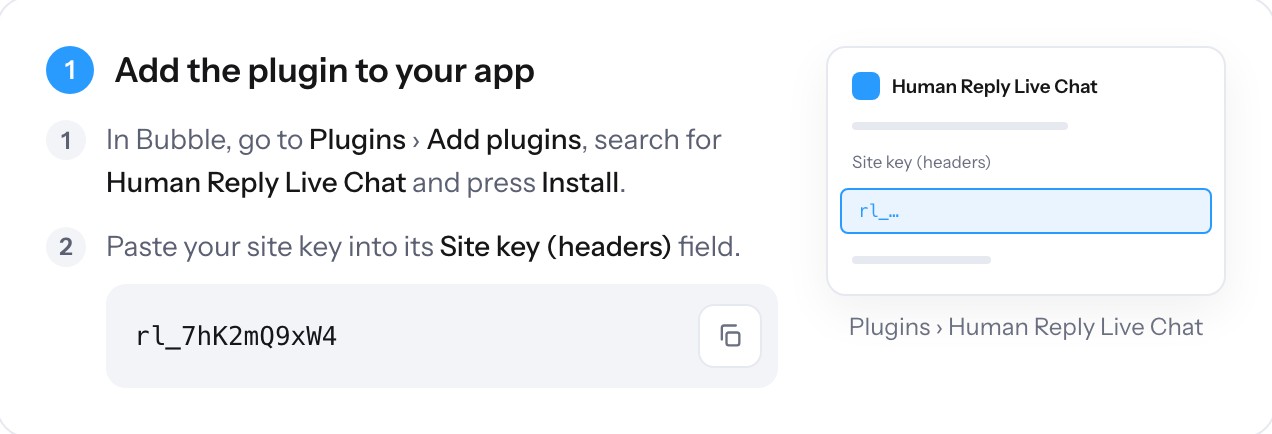
- In Bubble, open your app and go to Plugins › Add plugins.
- Search for Human Reply Live Chat, press Install, then Confirm.
- In the plugin's settings, paste your site key into Site key (headers). Leave Site key (headers) - dev. empty: your app's test version uses the same key.
- Deploy: Development › Deploy current version to Live. On Bubble's free plan, skip this step.
- Open your app once: its live address, or on the free plan its test version, yourapp.bubbleapps.io/version-test. The setup page turns to "You're live."

The plugin adds the chat to the head of every page, so it shows on every page of your app and stays there as people move between pages. There is nothing to place on a page.
5Make it yours
Sign in at humanreply.app and open your dashboard. Under Customize:
- Design: your logo and team name, the colour, light or dark, the font and size, the launcher's label.
- Position: bottom left or bottom right, the space from the edges, and the stack order. On Bubble's free plan, the "Built on Bubble" badge sits in the bottom right corner: move the chat to the left, or raise it.
- Language: the bubble's language, your greetings, and any of its words.
- Behavior: the ways to reply you offer, and what visitors see about your team.
Changes are saved as you make them and reach your app at once. There is nothing to change in Bubble, and nothing to deploy.
6Answer your visitors
- Every conversation opens as its own topic in your Telegram group, with a card that says who is writing: the page, where they came from, how many times they have visited, their language and device.
- Tap Claim, or just reply. Your answer shows in your app in seconds. Photos and files work both ways.
- React 👀 to a message to show the visitor it has been seen.
- Won or Lost closes the conversation and keeps it as a record.
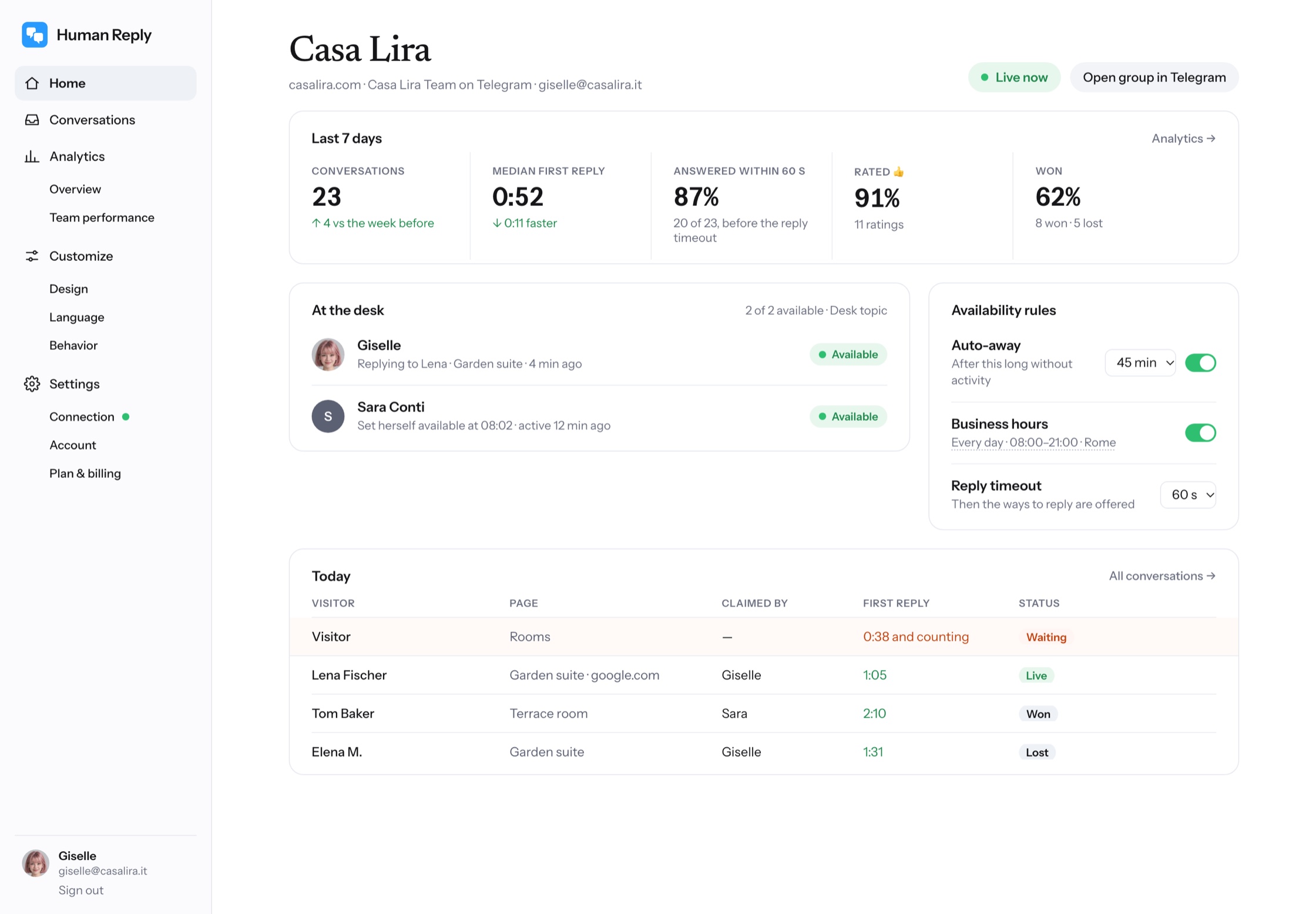
- In the Desk topic, tap I'm available or I'm away. When nobody is free, the chat says so and asks the visitor where the reply should go.
- The dashboard shows today's chats, every transcript, and analytics: conversations, first-reply time and ratings, by page and by person.
7Your plan
Settings › Plan & billing shows when the trial ends and what comes next. Manage billing opens Stripe, where you can change the card, see invoices, switch between monthly and yearly, or cancel. If the plan ends, the chat leaves your app until you start it again; your settings, your team and your conversations are kept. The plugin itself is free.
8Remove Human Reply
- In Bubble, go to Plugins, open Human Reply Live Chat and press Uninstall this plugin.
- Deploy to live. The chat leaves your app with that version; on the free plan, it leaves the test version at once.
Removing the plugin doesn't end your plan: cancel it under Settings › Plan & billing. To delete your Human Reply account and its conversations, write to hello@send.humanreply.app.
9If something isn't working
- The setup page keeps listening. Check the key is in Site key (headers), then deploy and open your app's live address, or on the free plan its test version.
- The chat sits under Bubble's badge. In your dashboard, Customize › Position: bottom left, or more space from the bottom.
- Settings › Connection says "Not in your app yet." The plugin has no key, or nobody has opened your app since. The row shows your site key again, with a copy button.
- You moved your app to your own domain. Nothing to do: the chat follows the plugin, wherever the app is published.
- Anything else: hello@send.humanreply.app. A person answers.