Webflow
Webflow setup guide
Human Reply puts a live chat on your Webflow site and brings every conversation to your team's Telegram group. This guide covers installing it, setting it up, using it and removing it.
1Before you start
- Telegram. A Telegram account, and a group for your team with Topics turned on. You can make the group during setup.
- A Webflow site that can run custom code. A site with a Site plan, or any site in a Core, Growth, Agency or Freelancer Workspace.
- A payment card, for the seven-day free trial. Nothing is charged during the trial.
- About ten minutes.
2Install Human Reply
- Press Get started on humanreply.app/webflow, or Install on Human Reply's page in the Webflow Marketplace.
- Webflow asks which site to add it to. Choose one site: Human Reply is installed per site, and each site has its own chat and its own plan.
- Webflow lists what Human Reply may do, and you approve:
- Custom code: add the chat's script to your site.
- Sites: read the site's name and see when it is published.
- Your user details: your name and email, to start your Human Reply account.
- Setup opens in your browser. If you press Deny instead, nothing is added to your site, and you can start again any time.
3Set up, in five steps
- Create your bot. Open BotFather in Telegram from the setup page (the first message is typed for you), choose a name, and paste the token BotFather gives you.
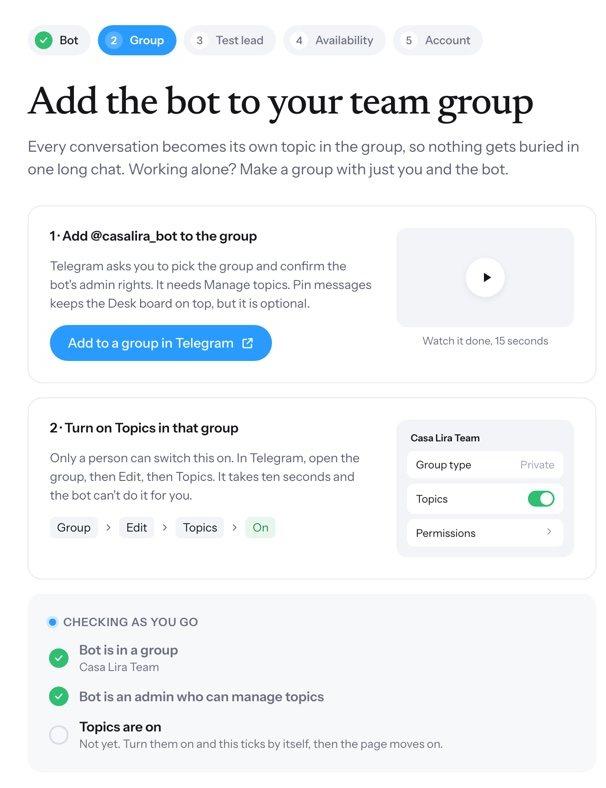
- Add it to your group. Add the bot to your team's group as an admin, and turn on Topics. The page checks as you go.
- Send a test lead. Write a message on the setup page and answer it from your phone, to see the whole loop once.
- Set your hours. Business hours, auto-away, and the ways a visitor can ask for a reply when nobody is free.
- Make your account. Your email and the six-digit code we send to it, then the plan: seven days free, then $12 a month, or $120 a year. You add your card on Stripe; nothing is charged during the trial, and the plan starts by itself when the trial ends unless you cancel before then.
4Add the chat to your site
- On the last setup page press Open Human Reply in Webflow. Or, in the Designer, open the Apps panel and launch Human Reply.
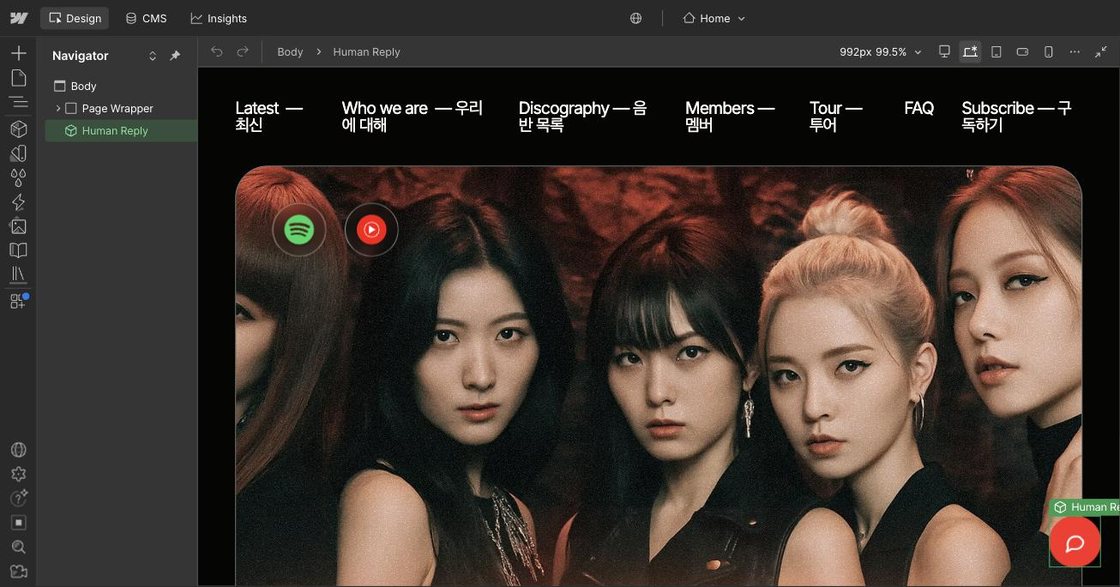
- Press Add to my site. The Human Reply component, the round chat button, appears bottom right on the page you have open, and the chat's script is added to the site through Webflow's custom code.
- Move or restyle the component like anything else on the page. To show the chat on every page, move it into your navbar or footer component.
- Publish. The chat goes live with the publish, and the setup page turns to "You're live."
5Make it yours
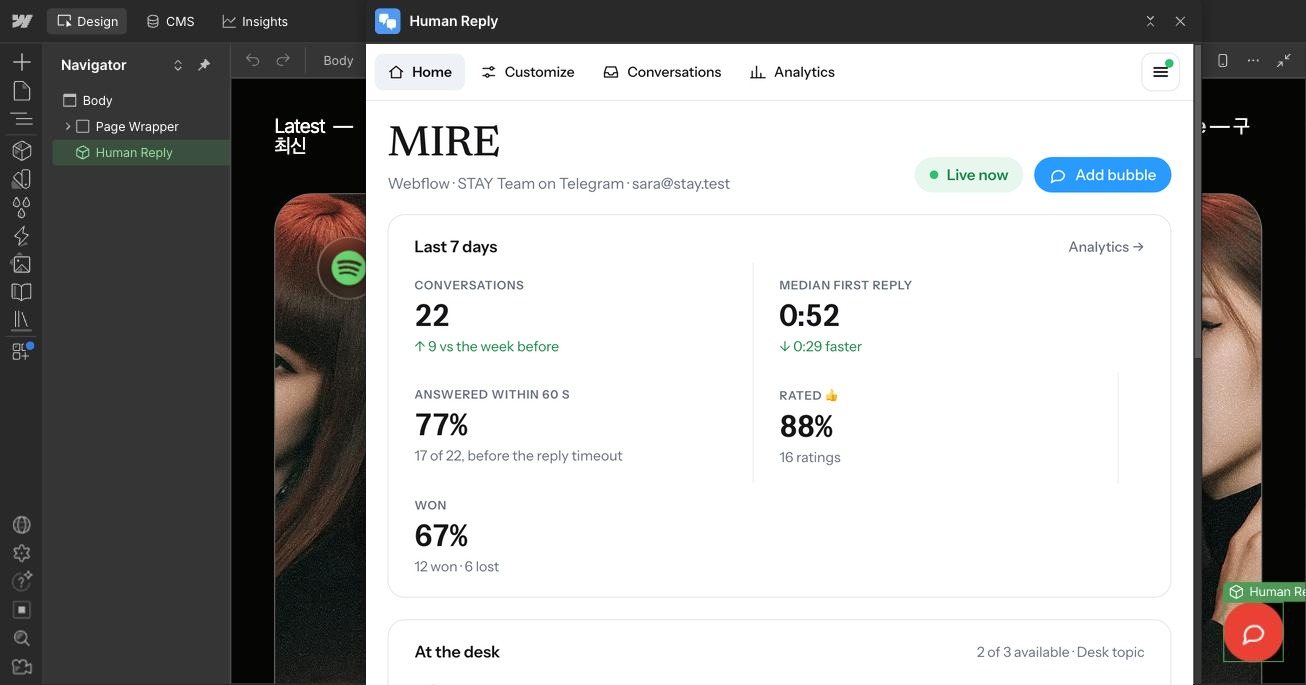
Open Human Reply in the Designer, or your dashboard at humanreply.app/dashboard. Under Customize:
- Design: your logo and team name, the colour, light or dark, the font and size, the launcher's label.
- Language: the bubble's language, your greetings, and any of its words.
- Behavior: the ways to reply you offer, and what visitors see about your team.
Changes are saved as you make them and reach your site at once. After a colour change made outside the Designer, press Update the bubble in the app so the canvas shows it too.
6Answer your visitors
- Every conversation opens as its own topic in your Telegram group, with a card that says who is writing: the page, where they came from, how many times they have visited, their language and device.
- Tap Claim, or just reply. Your answer shows on your site in seconds. Photos and files work both ways.
- React 👀 to a message to show the visitor it has been seen.
- Won or Lost closes the conversation and keeps it as a record.
- In the Desk topic, tap I'm available or I'm away. When nobody is free, the chat says so and asks the visitor where the reply should go.
- The dashboard shows today's chats, every transcript, and analytics: conversations, first-reply time and ratings, by page and by person.
7Your plan
Settings › Plan & billing shows when the trial ends and what comes next. Manage billing opens Stripe, where you can change the card, see invoices, switch between monthly and yearly, or cancel. If the plan ends, the chat leaves your site until you start it again; your settings, your team and your conversations are kept.
8Remove Human Reply
- In Webflow, open Site settings › Apps & integrations, find Human Reply and revoke its access.
- Publish. The chat leaves your site with that publish.
- In the Designer, delete the Human Reply component. Without the script it stays hidden on your published site, so nothing is left for visitors either way.
Removing the app doesn't end your plan: cancel it under Settings › Plan & billing. To delete your Human Reply account and its conversations, write to hello@send.humanreply.app.
9If something isn't working
- The app says "Open the setup page". Setup isn't finished for this site. Press the button and carry on where you stopped.
- The app doesn't open for a teammate. It opens for the person who installed it on the site. Teammates answer from Telegram and can use the dashboard at humanreply.app.
- Settings › Connection says "Not published yet." Publish the site in Webflow.
- The chat isn't on the published site. Check that the Human Reply component is on that page (or in your navbar or footer), that the site was published after you added it, and that the plan is active.
- Anything else: hello@send.humanreply.app. A person answers.